API Trading on Upscale: How to Connect a Bot to Your Challenge

Upscale now offers API Trading, an option that gives you programmatic access to your challenge. With it, you can connect a trading bot, your own script or an existing algorithmic engine to your account. The option is available on accounts with a notional of $10,000 or more, as well as on demo accounts. Below we cover how to connect the API, what the first code run looks like, which rules apply to an account with the option and who actually needs it.
What API Trading on Upscale is
An API (Application Programming Interface) lets you manage an account through requests sent from code instead of through the terminal interface. A program sends a request such as "open a position" or "show current positions", and the Upscale server executes it and returns a response. Everything a trader does by hand in the terminal, an algorithm does on its own, following set rules and without human involvement. This approach is known as algorithmic trading.
A trading algorithm can be built on anything: technical indicators, a news parser, an economic calendar or a combination of these sources. But every strategy ends with the same action, which is an order. To trade through the API, a program essentially needs to do two things: send orders and monitor the account state, above all the drawdown. Everything else, such as viewing history or closing positions in bulk, is an implementation detail.
What the option is good for
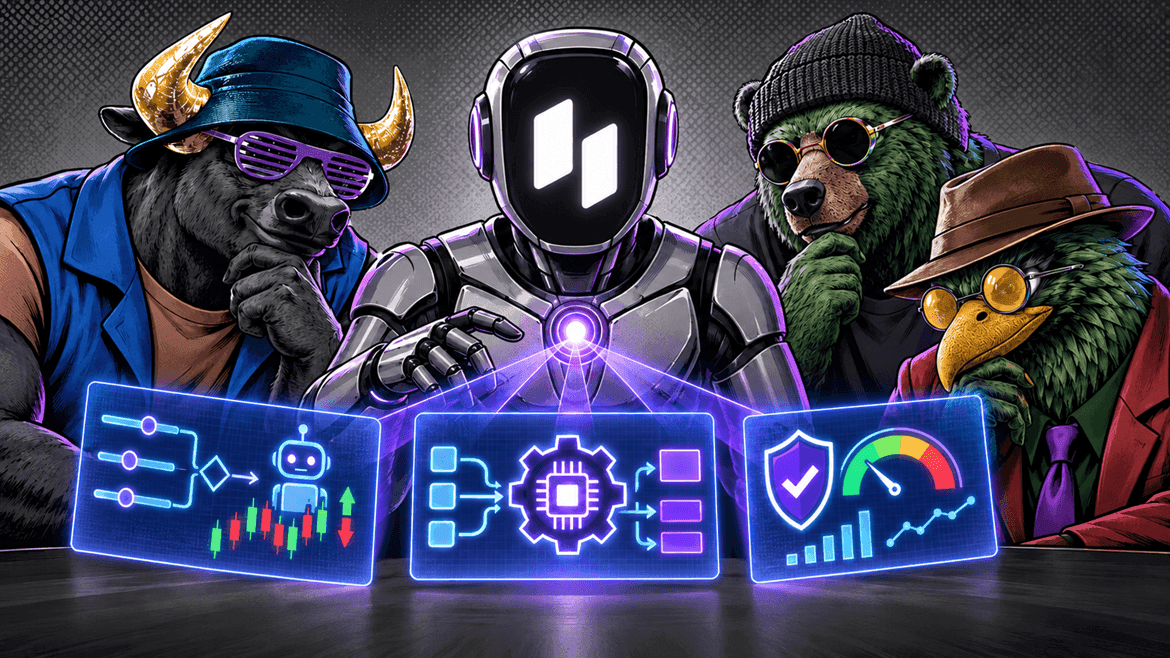
The first scenario is a trading bot running your own strategy. The trader formalizes entry and exit rules, and the script watches the market and opens trades when the conditions are met. An algorithm doesn't get tired or distracted, and it can keep working while the trader sleeps.
The second scenario suits traders who already have an algorithmic engine. Upscale plugs into it as one more execution venue: the strategy logic stays the same, and only the destination of the orders changes.
The third scenario is risk control and analytics. Through the API you can pull real-time data on your account, positions and orders and build your own trading telemetry. You can also set positions to close automatically when the account approaches its drawdown limit. This matters because limits on Upscale are calculated with unrealized PnL included: a losing open position reduces the balance immediately, not at the moment it is closed. This kind of control reduces risk but doesn't guarantee the outcome: in a sharp price move, a position may close at a worse level than expected.
Where the option is available
API Trading can be added to challenges with a notional of $10,000 and above. It is not available on $1,000 and $5,000 accounts.
There are two ways to get the option. The first is to select it at checkout, in which case the account is created with the API already enabled. The second is to add it to a challenge that is already running. For that, the account must be active, have a notional of $10,000 or more and not yet be on the funded stage, and the option must not have been activated on it before. If any condition isn't met, the platform shows the reason.
If the option was activated before the move to the funded stage, the API keeps working on the funded account. It cannot be added to a challenge that has already reached the funded stage.
Turbo accounts, which open directly on the funded stage, are a separate case. The option is available on them too, but not for every notional. The current options are shown at checkout.
API Trading is also available on demo accounts, which makes demo the best place to start. There you can test your code, the request limits and how the rules behave without risking anything.
How to connect the API: step by step
On a demo account, the option is enabled when you create the challenge. Click "Try demo" and switch on the "API Trading" toggle. The platform will show a warning about the additional rules. Confirm and click "Start trading". A demo account marked as API-enabled will appear in your account list.
For a real challenge, the process is the same as described above: the option is selected at checkout or added to an active account.
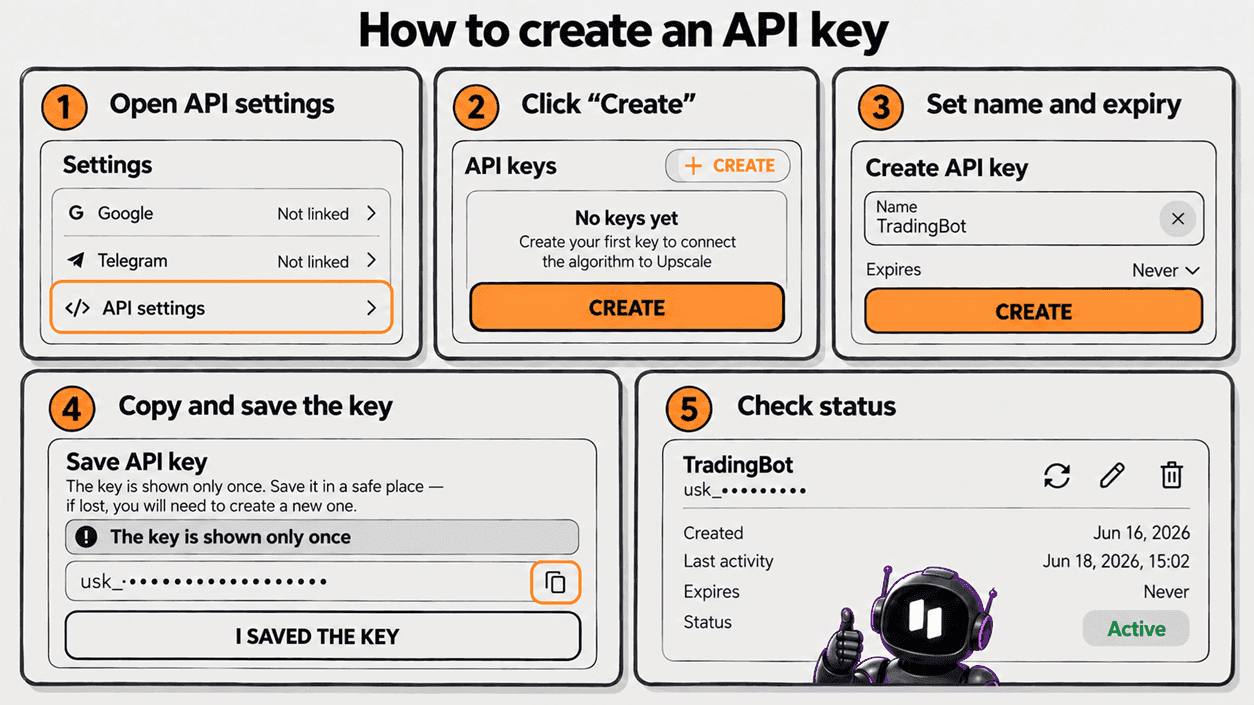
For your code to access the account, you need an API key. Open your account settings and go to the API settings section. There are no keys there by default. Click "Create", give the key a name and, if needed, an expiration date, then confirm.
The key is shown only once. Copy it and store it somewhere safe right away, for example in a password manager. This is a standard security measure: if the key could be viewed again, anyone with access to your device could copy it and trade on your behalf. If a key is lost or compromised, create a new one. General principles for protecting API access are covered in the OWASP API Security guidelines.
First run: an example from the documentation
The detailed Upscale API documentation covers authentication, request limits, accepted parameter values and error codes. It also lists the trading endpoints: data on accounts, positions, orders and the current state of markets.
The easiest place to start is the Quickstart section. It contains two ready-made code examples, one in Python and one in JavaScript, and both run the same scenario:
- get the list of your accounts to determine which one to work with;
- get the list of markets and find BTC;
- open a $100 long market order with 5× leverage;
- request the position to confirm it has actually opened;
- close the position.
To run the ready-made Quickstart code, copy it into an editor, add your API key and execute the script. The position will open and close without a single action in the terminal. The goal of this code isn't to make money but to check that the key, the code and the account work together, so it's best to run it on a demo account.
Next, it's worth studying the documentation section on creating an order. It describes the available order types and the purpose of each parameter: what leverage to set, how to specify the account and market, when a position ID is required and when a trigger price is mandatory.
An AI assistant instead of hand-written code
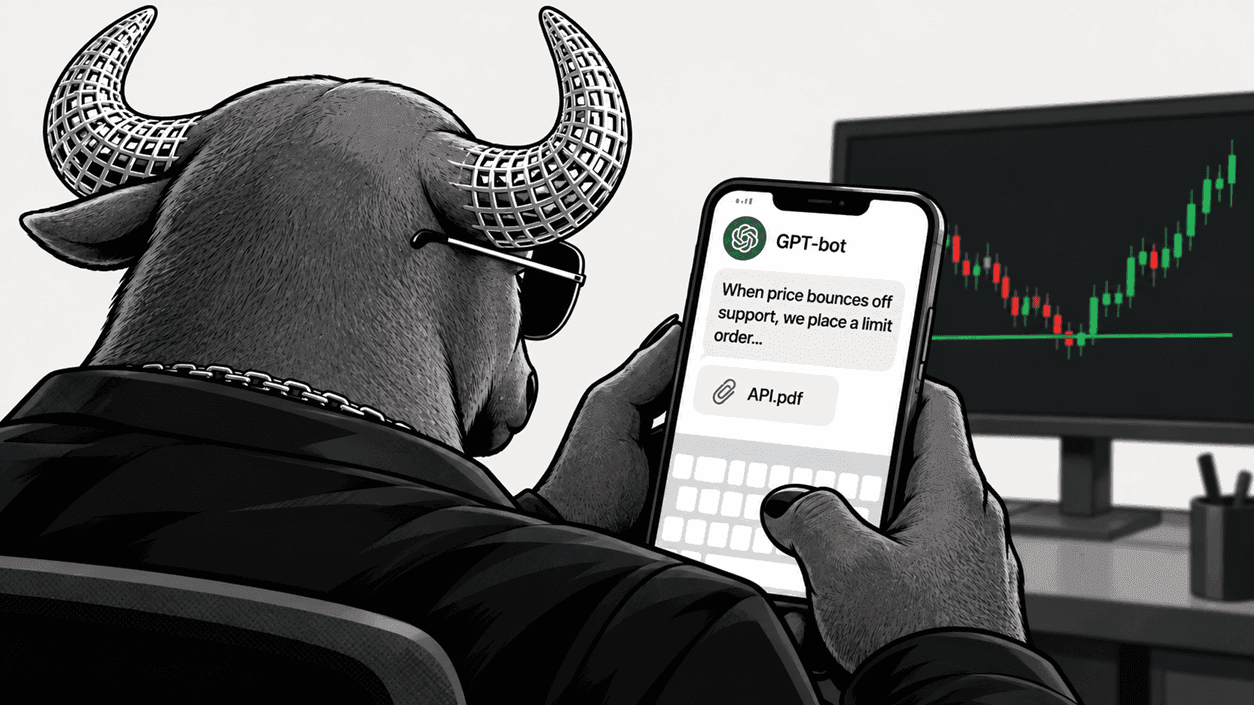
You don't have to write a script from scratch. If your strategy can be described in words, for example "on a bounce off a support level, place a limit order with such-and-such stop", you can give it to an AI assistant along with the Upscale API documentation and ask it to write a bot. A first working version takes a few minutes. The script runs locally: your computer hosts the algorithm and sends requests to the Upscale server. No separate server is needed.
With this approach, three rules matter.
Never share your API key in a chat with an AI model. Keep the key in an environment variable or in a local config file that the code reads at startup. This is standard practice for keeping secrets out of code.
Check the logic of the generated code. The model may overlook fees, funding or account rules, and then the real result will differ from the expected one. Always run first versions on a demo account.
Automation doesn't fix a strategy. A bot does exactly what it was built to do, only faster and without breaks. If the idea loses money over time, the algorithm will simply bring the account to its drawdown limit sooner.
A typical example is averaging down. When the price moves against a trade, the bot buys more of the asset to lower the average entry price and exit in profit on a small pullback. Many "trading robots" offered to beginners are built on this logic. If the market reverses, the approach looks like it works. But if the move continues, each averaging step increases the position, and the loss grows with it.
Take a $10,000 Basic account with a 5% daily drawdown limit ($500) and a 10% maximum drawdown ($1,000). The bot opens a $2,000 long and doubles the position after every 2% drop in price. After four such moves, the position has grown to $16,000 and the loss is about $600, so the daily limit has already been breached. Even if the decline stretches over several days, after the fifth step the position reaches $32,000, and the total loss of about $1,240 exceeds the maximum drawdown. The loss on an open position counts toward drawdown immediately, so the account will be closed before any reversal.
Rules that apply to an account with the API option

API access comes with additional restrictions on the account. The platform warns about them before you connect, and once activated, the option cannot be switched off: the rules stay in place until the end of the challenge.
Request rate limit. If a program sends requests more often than the server allows, the server returns an error and the request is not executed. This is a standard API protection mechanism, similar to an HTTP 429 response. The exact limits are listed in the API documentation, and it's worth building them into your bot's logic from the start.
60-second profit adjustment. Every time a position is opened or increased, a 60-second window starts. If the position is fully or partially closed in profit within that window, the profit isn't counted. Losses, fees and funding are still counted in full. Each new increase of the position restarts the window. For example, a position is opened at 12:00:00 and closed with a $180 profit at 12:00:40. Only 40 seconds have passed, so the counted result is zero. Had the same position been closed at 12:01:10, the $180 profit would have been counted in full.
30% rule. The single most profitable day must not account for 30% or more of total profit. On challenge stages this is a condition for moving to the next phase; on the funded stage it is a condition for payout eligibility. For example, with daily profits of +$200, +$300, +$1,500, +$300 and +$200, the total result is $2,500 and the biggest day accounts for 60%. For its share to drop to 30%, total profit has to grow to $5,000.
Both rules apply to the entire account, not just to trades made through the API. If your algorithm stops working and you decide to continue trading manually in the terminal, the restrictions remain: trades need to be held longer than 60 seconds, and profit needs to be spread evenly. The full terms of the option and the mechanics of both rules are described in the documentation, on the API Trading page.
Here is how it looks in the interface. The account card shows an API icon and a "Max profit day" block with the current figure for the 30% rule, just like on Turbo accounts. If the 60-second adjustment was applied to a close, the position history shows the result as 0 USD. Hovering on desktop or tapping on mobile brings up an explanation with the original profit amount.
Who doesn't need the option
API Trading is a tool for traders who already understand why they need automation. The option doesn't make trading easier by itself and doesn't turn a random script into a profitable system.
If you trade manually and have no plans to connect programmatic tools, there's no point in getting the option. You won't use the API access, but the additional rules will still apply to your account. If automation interests you but you have no experience yet, start with a demo account: mistakes in your code cost nothing there.
Key takeaways
API Trading brings programmatic trading to Upscale: a bot, your own script or an existing algorithmic engine can be connected to a challenge with a notional of $10,000 or more. On challenges, the option is activated before the move to the funded stage and keeps working on the funded account. It is also available for some Turbo account notionals and on demo accounts, which is where you should test your code and strategy first.
To get started, you only need to enable the option and create an API key in the settings. The key is shown once and stays with the trader alone. The Quickstart in the documentation checks the whole setup in a couple of minutes by opening and closing a position. You don't have to write code from scratch: an AI assistant can build a bot from a plain-language description of your strategy, but the key must never be shared in the chat, and you need to verify the logic and fee handling yourself.
The main thing to consider before getting the option is that the 60-second profit adjustment and the 30% rule then apply to the whole account, including manual trades, and they cannot be switched off. The option is useful for traders who trade algorithmically and hold positions for longer than a minute. Traders who work only manually don't need it.
Start now: 👉 Upscale.trade | Telegram bot
Follow us: 📺 YouTube | 𝕏 Twitter
Community: 💬 Telegram chat | 🎮 Discord
Frequently asked questions
What is API Trading on Upscale?
It is an additional challenge option that opens programmatic access to the account. With it, you can connect a trading bot, your own script or analytics tools to the account, and orders and position data are sent through requests from code instead of the terminal interface.
Which accounts is the option available on?
The option is available on challenges with a notional of $10,000 or more. It is not available on $1,000 and $5,000 accounts. On Turbo accounts, the option is not offered for every notional: the current options are shown at checkout. The API can also be enabled on a demo account.
Can I add the API to an account on the funded stage?
The option cannot be added to a challenge that has already moved to the funded stage. It can be selected at checkout or added to an active account before that move. If the option was activated earlier, the API keeps working on the funded account. Turbo accounts open directly on the funded stage, and the option is available for some of their notionals.
Where do I get an API key?
The key is created in your account settings, in the API settings section. You need to give it a name and, if needed, an expiration date. The key is shown only once, so store it somewhere safe right away. If the key is lost, create a new one.
What rules apply to an account with the API option?
The request rate limit, the 60-second profit adjustment and the 30% rule. Profit on a trade closed in the green less than 60 seconds after the position was opened or increased isn't counted, while losses and fees are counted in full. The single most profitable day must not account for 30% or more of total profit: on challenge stages this is a condition for moving to the next phase, and on the funded stage it is a condition for payouts.
Do these rules apply to manual trades?
Yes. The rules apply to the whole account regardless of how a trade was opened: through the API or manually in the terminal. The option cannot be switched off after activation: the rules stay in place until the end of the challenge.
Do I need to know how to code to trade through the API?
A basic understanding of code makes things much easier, but you don't have to write a script from scratch. The documentation includes ready-made examples in Python and JavaScript, and an AI assistant can write a bot from a plain-language description of your strategy. Generated code should be tested on a demo account, and the API key should be kept in an environment variable and never shared in the chat.
Should I get the option if I trade manually?
No. If you don't plan to connect programmatic tools, you won't use the API access, but the additional rules will still apply to your account.